
Feature
Facade Editor
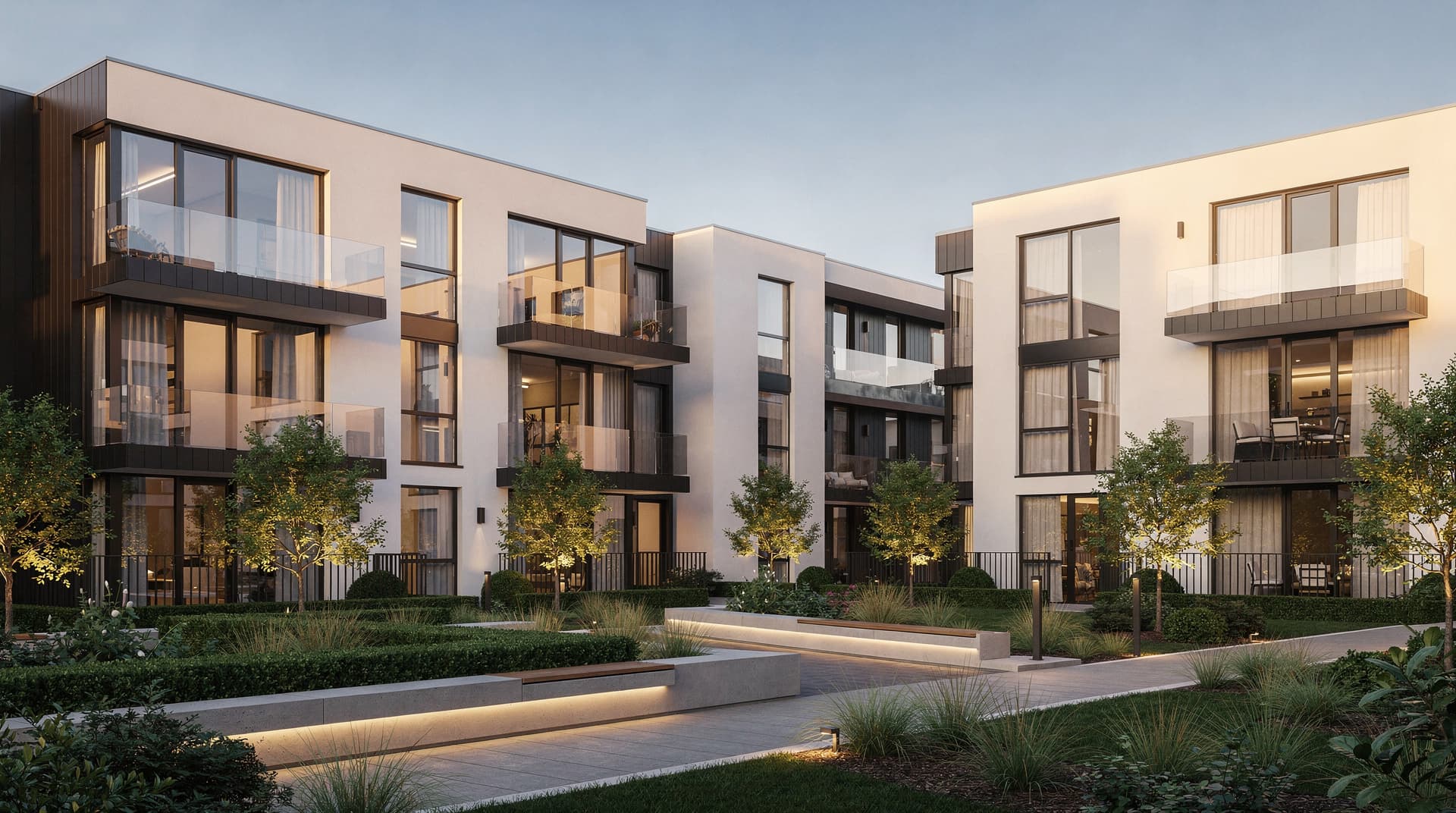
The Facade Editor lets architects change materials, facade colors, and cladding options on an existing render without re-uploading drawings or regenerating from scratch. Paint over the area with a brush or describe the change — "dark Corten steel panels", "white lime render" — and Archvisio applies it, typically in 10–30 seconds.
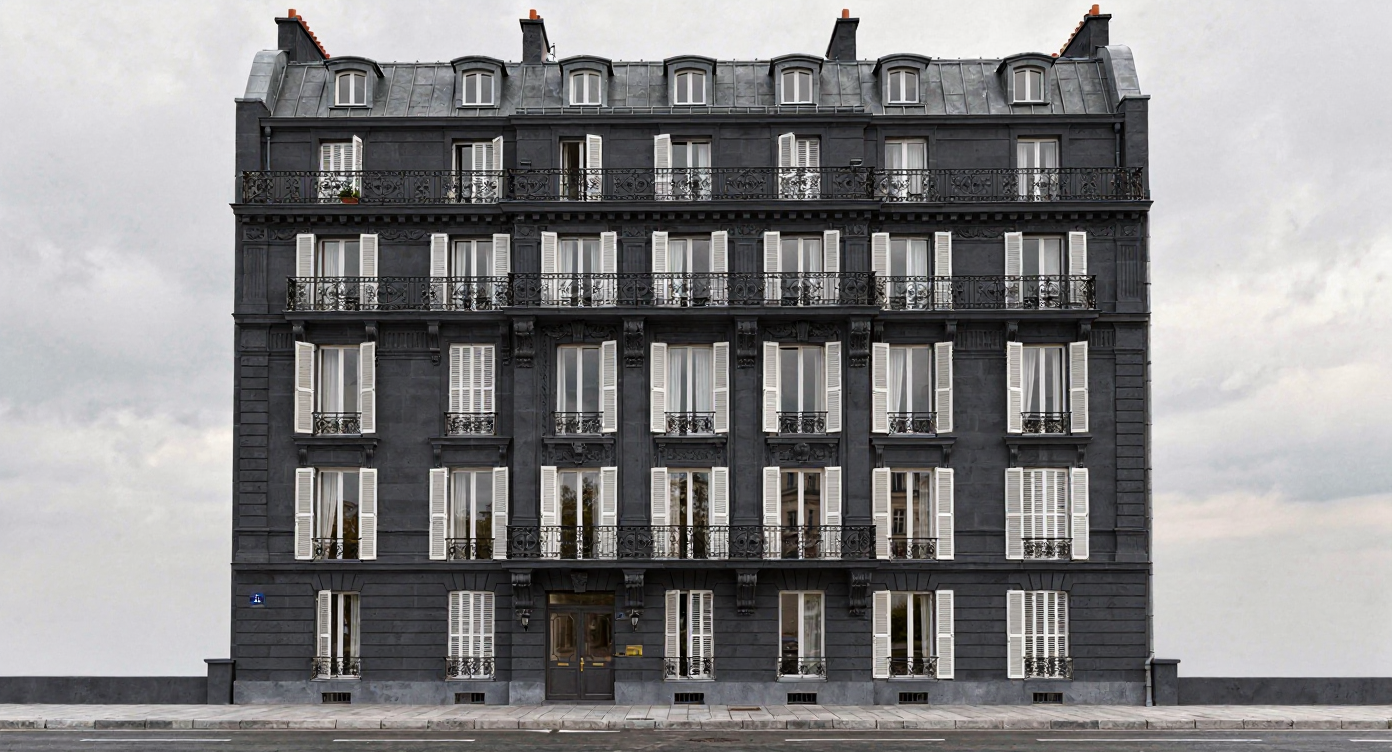
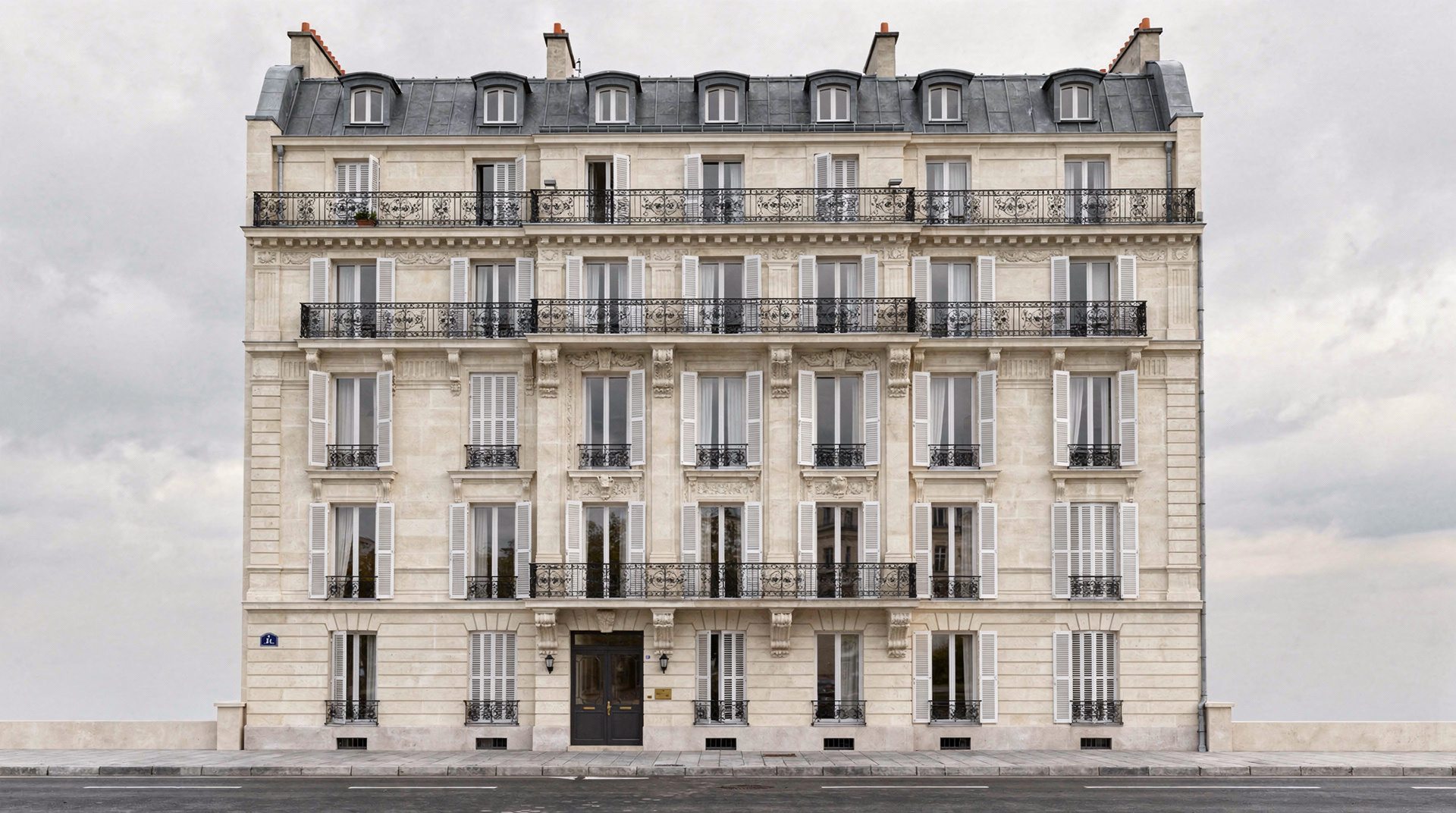 OriginalEdited
Benefits
What can you do with Facade Editor?
Change Materials Without Restarting
Apply a new facade treatment to an existing render in seconds. No need to re-upload drawings, re-enter prompts, or wait for a full regeneration.
Edit Just One Area
Paint over a specific zone with the brush — only the ground floor, only the balconies, only the window surrounds — so the change stays focused on that area.
Explore Color Palettes Fast
Use the quick options for colors, windows, roof, facade and landscape, and try several facade colors in the time a traditional renderer needs to set up one. Bring several options to the client meeting instead of one approved direction.
How it works
How does Facade Editor work?
- 1
Open a Completed Render
Start from any render already saved in your Archvisio project.
- 2
Mark the Area to Change
Paint over the area you want to change with the brush — the full facade, the upper floors or a single material zone — or skip this step and describe the change in words.
- 3
Describe the Material Change
Type a prompt like "replace with dark Corten steel cladding" or "apply white lime render finish", or use the quick options for colors, windows, roof, facade and landscape.
- 4
Apply and Review
Archvisio applies the change, typically in 10–30 seconds, and saves the result to your project. Review it against the original before you share it.
Use cases
Who uses Facade Editor?
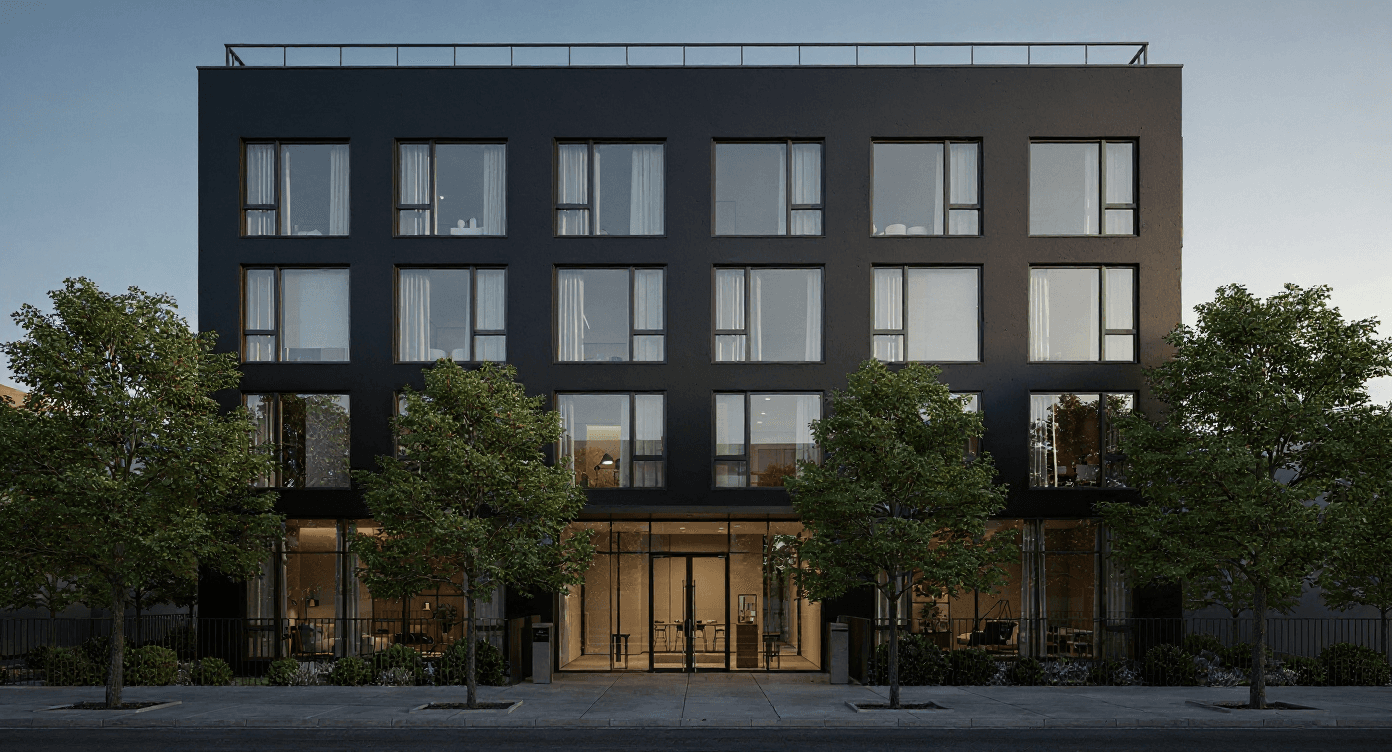
Client Material Review Sessions
Try facade options live in a material review meeting: each edit takes about 10–30 seconds, so there is no need for pre-prepared alternatives.
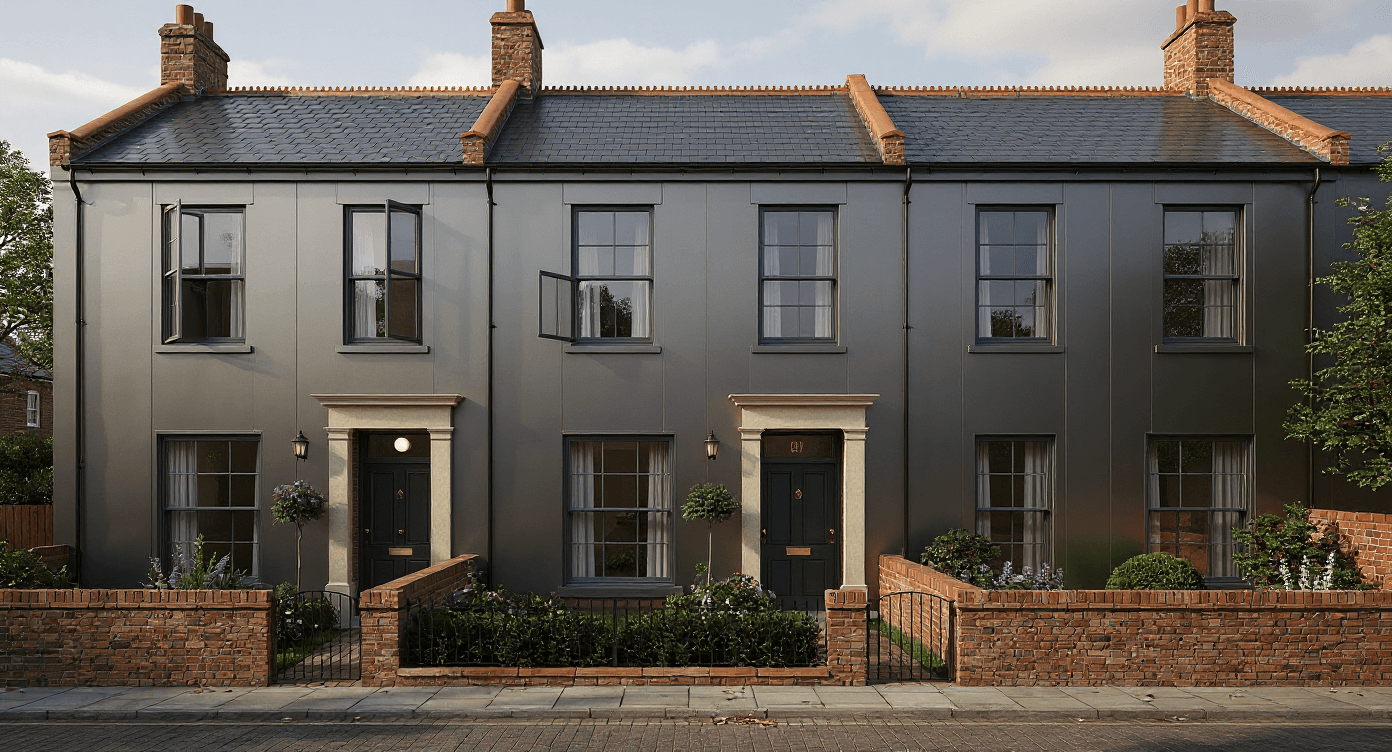
Planning Application Alternatives
Prepare multiple facade material options for planning authority review without commissioning separate renders for each variant.
Developer Specification Packages
Produce a set of facade material options for a developer specification document in one session. Every edit starts from the same render, which helps keep the geometry consistent across variants.