
Feature
AI Render Generation
AI Render Generation lets architects and designers turn 2D elevation drawings or floor plans into photorealistic images — typically in 10–30 seconds, with no 3D modeling and no rendering software. Upload your drawing, describe the style you want, and Archvisio generates a render you can review right in the browser.
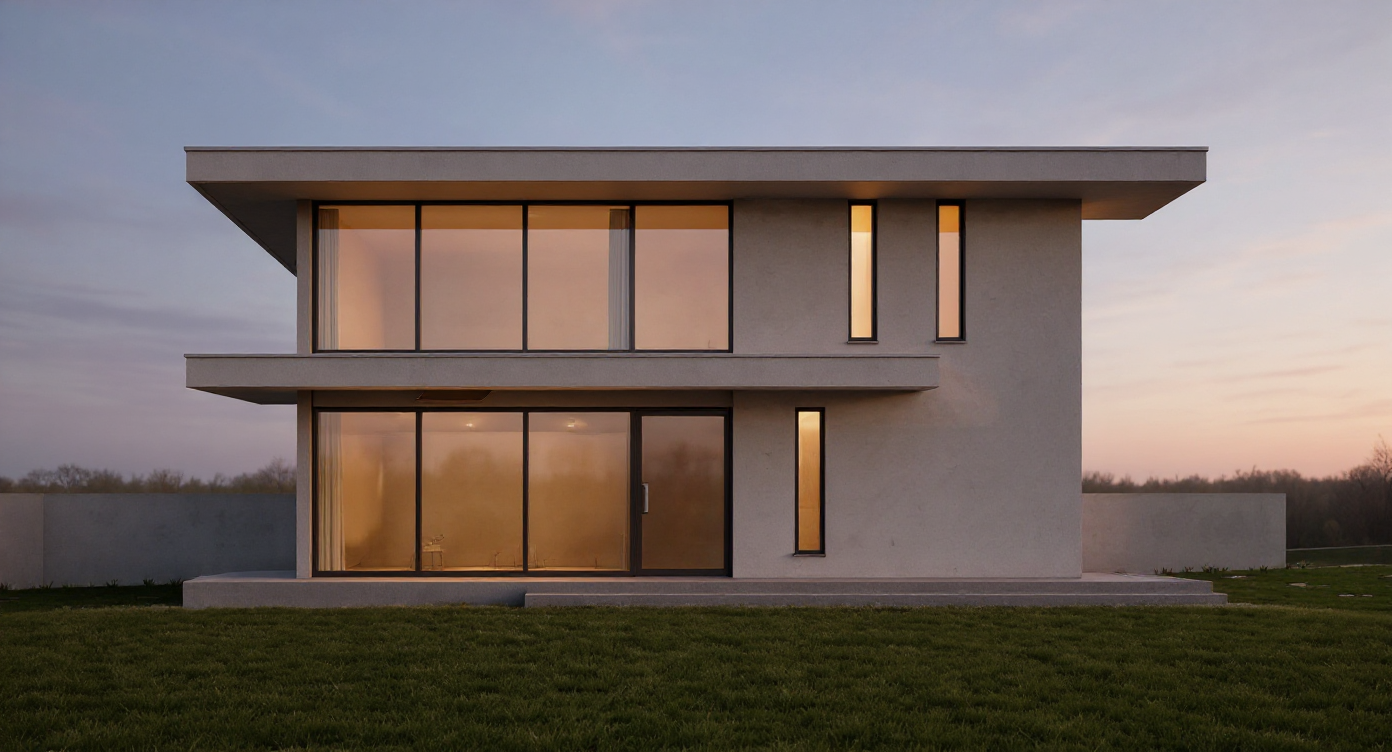
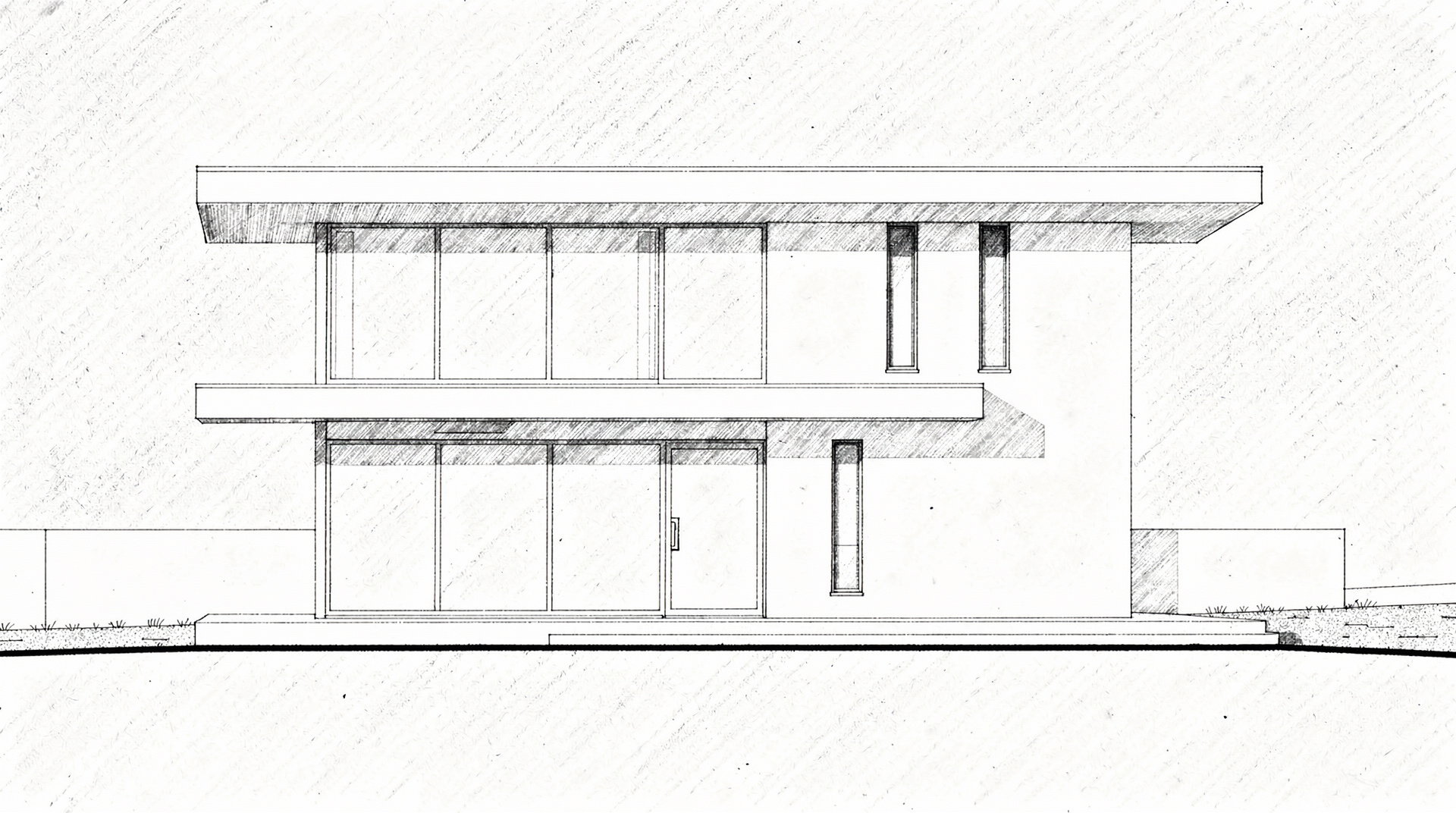 Elevation DrawingAI Render
Benefits
What can you do with AI Render Generation?
No 3D Modeling Required
Skip the time-consuming step of building a 3D model. Archvisio works from your 2D drawings directly and turns them into photorealistic renders.
Explore Styles Without Redrawing
Describe a style in words — "Nordic timber", "Haussmann stone", "contemporary farmhouse" — or save your own presets. Try different directions without redrawing anything.
Resolution Up to 4K
Renders start at 1K, go up to 2K on several models and up to 4K on Nano 2 (for more credits), and an upscaler handles anything larger. Photorealistic lighting, materials and environment, ready for a presentation or proposal.
Iterate Quickly
Refine the prompt, swap the style and press Generate again — most renders take 10–30 seconds (each run uses credits). One hour holds far more iteration cycles than traditional rendering allows in a day.
How it works
How does AI Render Generation work?
- 1
Upload Your Drawing
Upload a photo, scan or PDF of your elevation drawing or floor plan — JPG, PNG, WebP, TIFF or PDF, up to 50 MB. For a PDF you pick the pages (Pro view). DWG and DXF are not supported, so export CAD drawings to PDF or image first.
- 2
Describe the Result You Want
Type a prompt describing style, materials, time of day and environment — for example "Nordic timber, overcast light" — or start from a preset such as Photorealistic, Sketch or Cinematic. You can save your own presets too. The AI uses your drawing and your prompt together.
- 3
Generate and Review
Archvisio sends your input to an image model — chosen automatically (Auto) or by you — and returns a render, typically in 10–30 seconds; some models take up to 90. Review the result directly in the browser.
- 4
Rate, Save, or Generate Again
Star your best renders, download them as JPEG, or press Generate again for another variation (each run uses credits). Every render is saved to your project automatically.
Use cases
Who uses AI Render Generation?
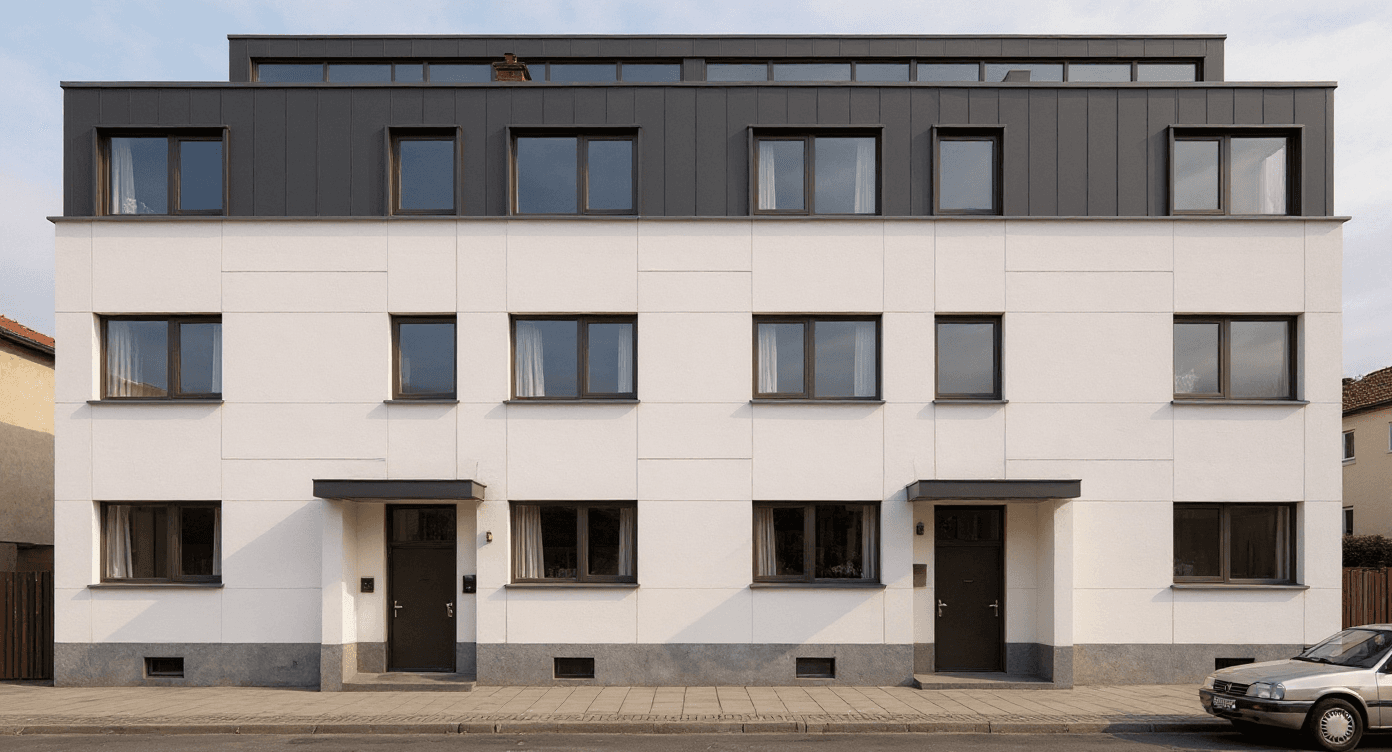
Renovation Proposals
Show clients what a façade renovation will look like before a single brick is moved. Generate photorealistic before/after visuals from existing photos and drawings.
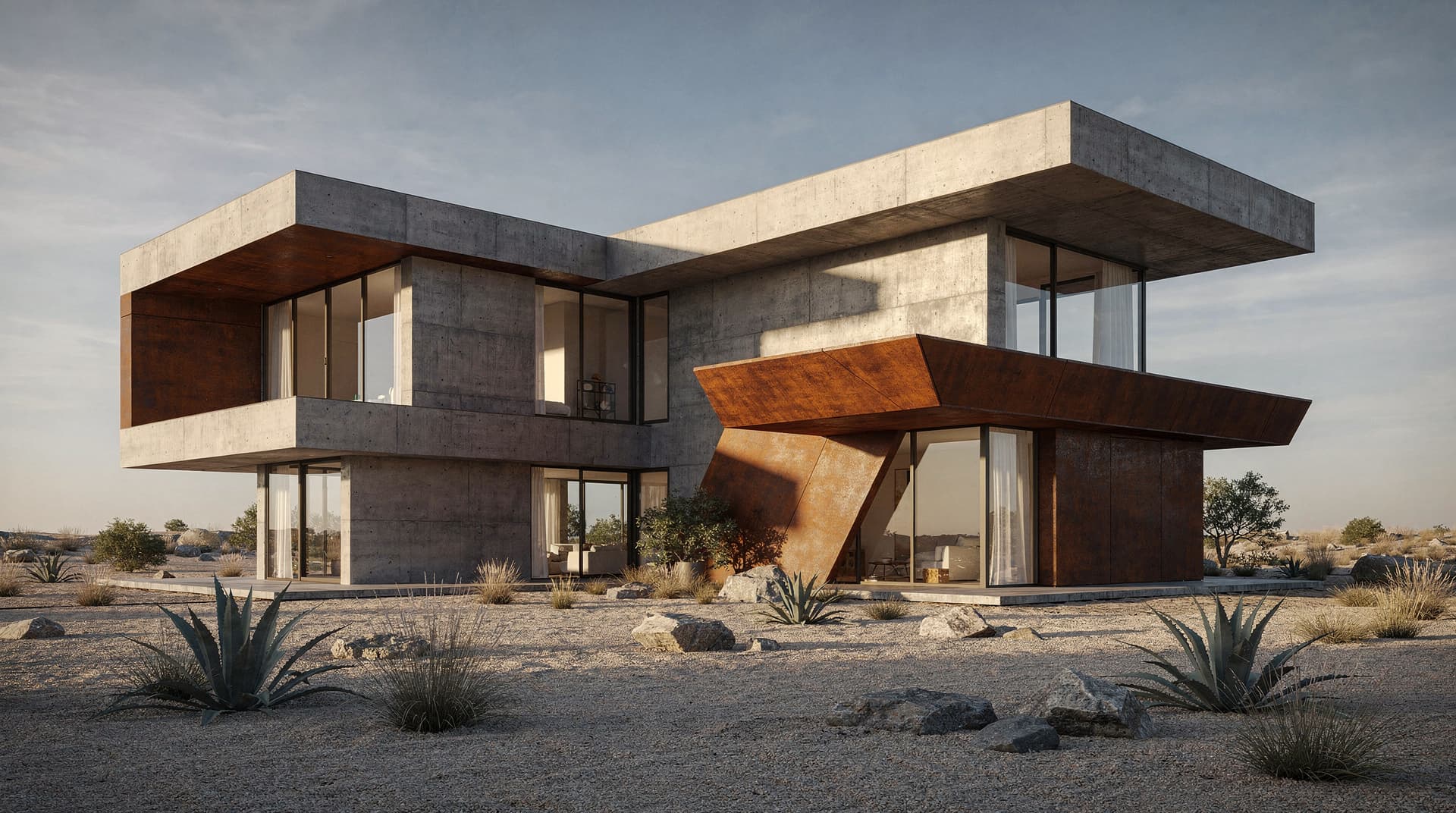
Early Design Exploration
Test several design directions in the time it used to take to model one. Use renders to align with clients at concept stage rather than after detailed design.
Competition and Pitch Submissions
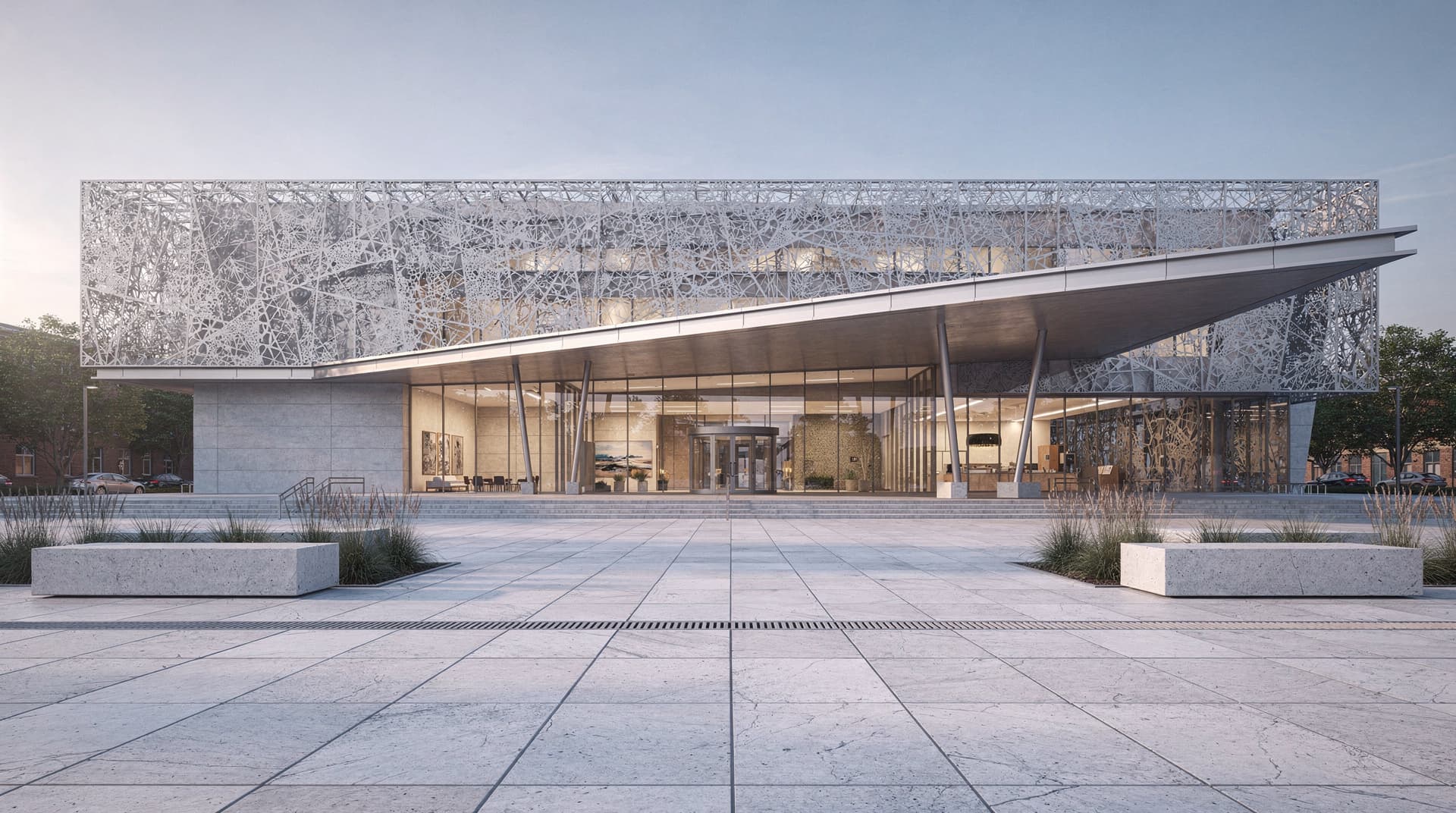
Produce renders for competition boards and pitch decks without outsourcing to a visualization studio. You steer style and composition through your drawing and prompt.