
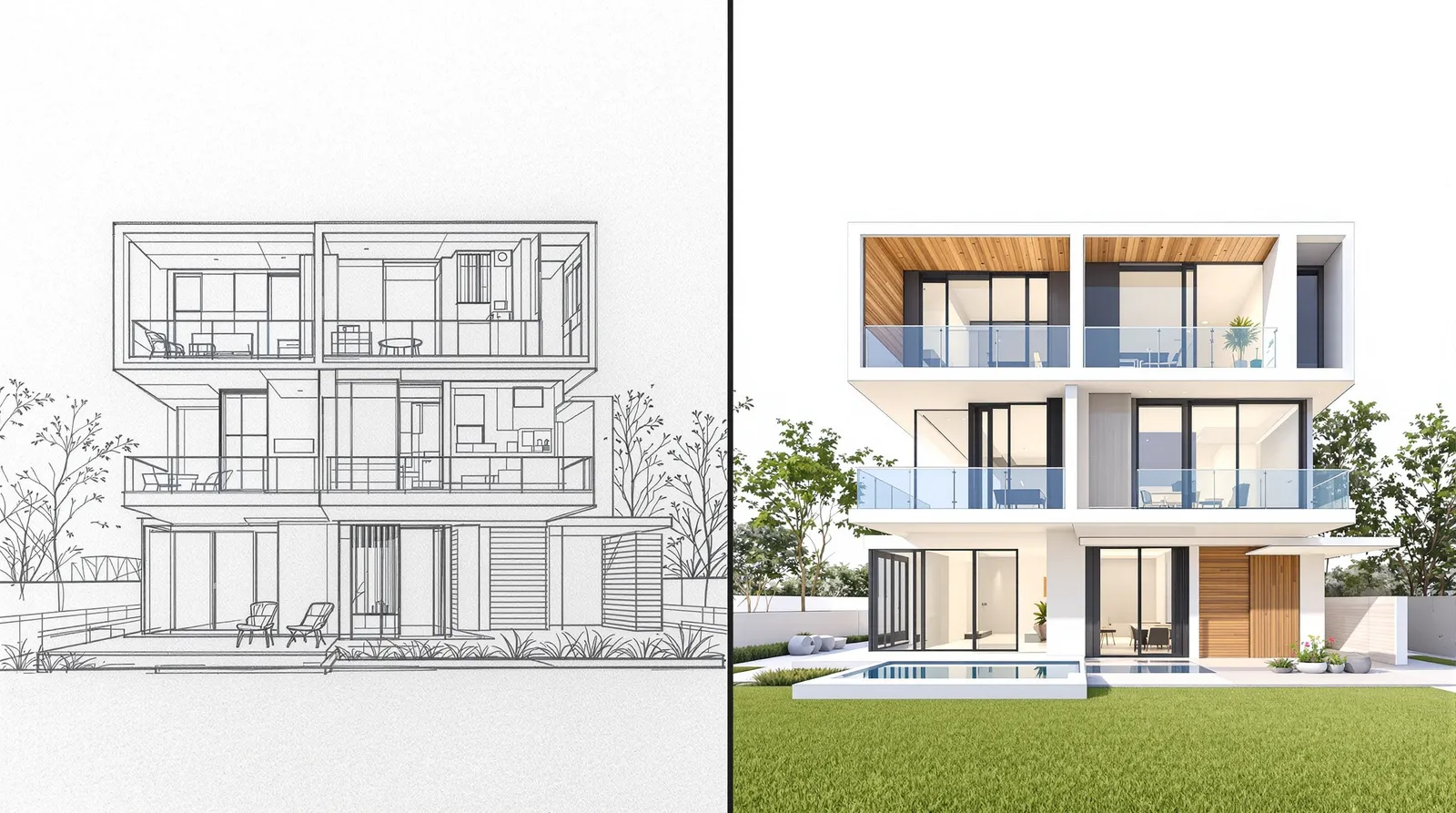
Sketch to render AI describes tools that convert architectural drawings — floor plans, elevation sketches, hand drawings, and CAD exports — into photorealistic render images in under 30 seconds, without 3D modeling software. Upload a drawing, describe the materials and lighting, and the AI produces a presentation-ready render. No 3D modeling. No renderer setup. No specialist software.
This is how architects, interior designers, and developers are now compressing weeks of visualization work into minutes.
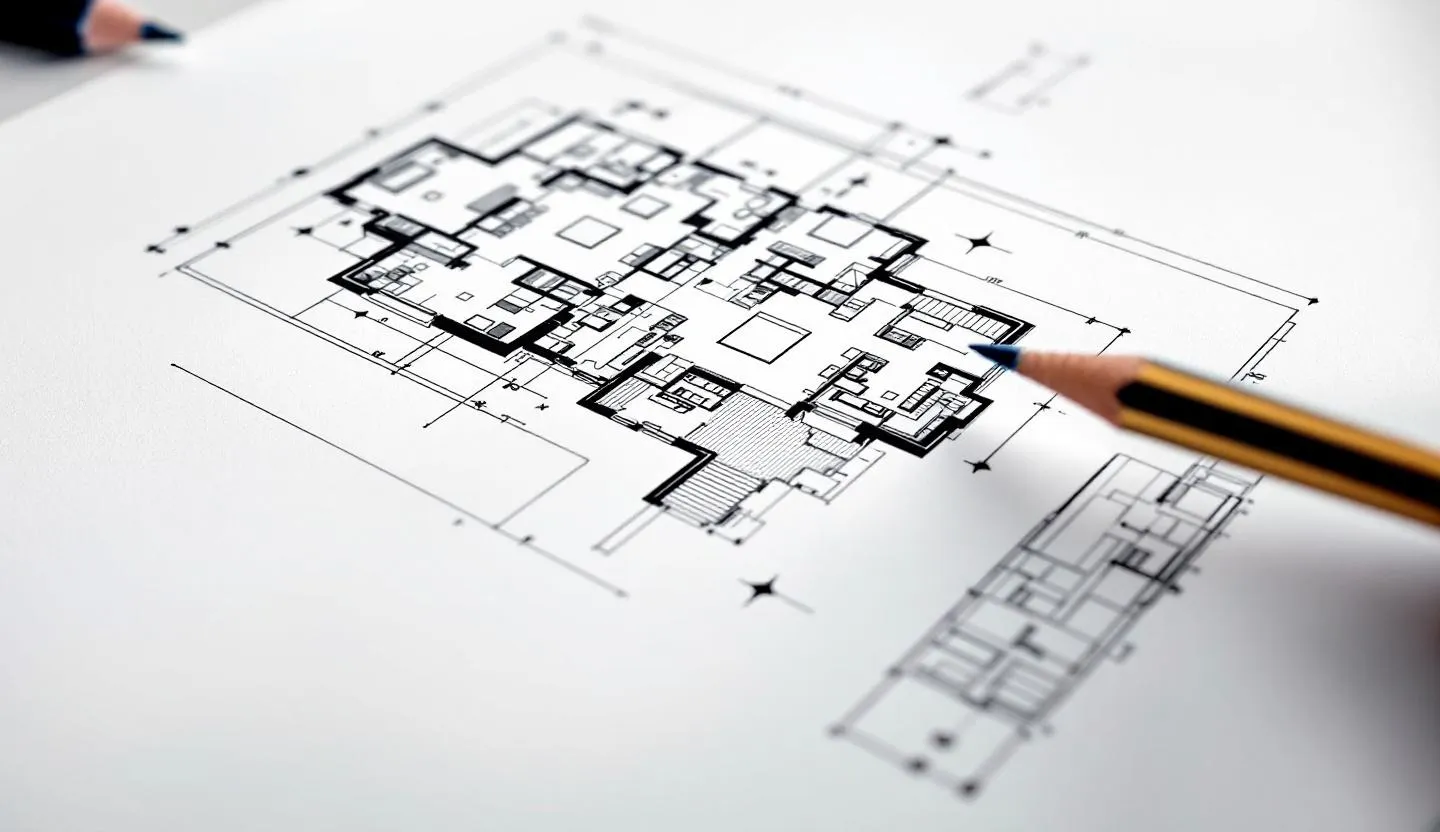
What Does "Sketch to Render AI" Mean?
Sketch to render AI refers to the category of AI tools that accept an architectural drawing as input and return a photorealistic image as output. The drawing can be a floor plan, an elevation sketch, a hand drawing on paper, or a CAD export. The AI reads the geometry, interprets spatial relationships, and applies materials, lighting, and context to produce a rendered image.
The key distinction from traditional rendering: no 3D model is required. The AI infers depth and form from the 2D input. This makes it accessible at early design stages — concept, planning, client brief — when no 3D model exists yet.
Archvisio's AI rendering feature is built specifically for architectural workflows, handling the full range of drawing types architects actually produce.
How Does Sketch-to-Render AI Work?
The workflow has five steps, each taking seconds:
-
Upload your drawing. Supported formats include JPEG, PNG, PDF (floor plans exported as PDF are automatically converted). The drawing can be hand-sketched, digitally drafted, or a CAD export. Resolution matters — higher resolution inputs produce sharper outputs.
-
Write a prompt describing materials, style, and lighting. This is where you direct the render. Be specific: "exposed concrete frame, floor-to-ceiling glazing, warm afternoon sunlight from the west, residential interior, Scandinavian style" will produce significantly better results than "modern building". The prompt is your specification.
-
Choose a quality level. Most tools offer a fast preview mode (lower resolution, seconds per render) and a high-quality mode (full resolution, suitable for presentations). Use preview mode to iterate quickly, then generate the final render at full quality.
-
Generate — the AI produces the render. The model processes your drawing and prompt together, using the drawing as a geometric constraint and the prompt as a style and material directive. Output time is typically 10-30 seconds.
-
Refine with follow-up prompts. Once you have a first render, you can iterate: change the materials, adjust the lighting, swap the season, or modify specific elements. The facade editor lets you apply targeted material changes to specific parts of the building without regenerating the whole image.
What Types of Drawings Work Best?
Most drawing types produce usable renders, but output quality varies by input type. Here is a breakdown:
| Input Type | Output Quality | Best For |
|---|---|---|
| Floor plan (digital) | Good — AI infers room layout and proportions | Interior renders, space planning visuals |
| Elevation drawing (digital) | Excellent — geometry is unambiguous | Facade renders, planning submissions |
| Hand sketch (clear lines) | Good — works well with strong contrast | Concept stage, early client presentations |
| CAD export (PDF/PNG) | Excellent — high precision geometry | Technical presentations, planning applications |
| Site photo (existing building) | Excellent — real-world context preserved | Refurbishment projects, material studies |
| Blurry or low-contrast scan | Poor — AI cannot read geometry accurately | Not recommended without image cleanup first |
For floor plan to render AI workflows, the AI interprets room boundaries as spatial containers and generates interior renders showing how the space would look furnished and lit. For elevation to render AI, the facade geometry is used directly, and the prompt drives material and lighting choices.
Multi-reference rendering lets you combine multiple drawings — for example, a floor plan plus a material sample photo — to give the AI more context and improve accuracy.
How Accurate Are AI Renders from Architectural Drawings?
Accuracy depends on two factors: drawing clarity and prompt specificity.
Drawing clarity determines how well the AI can read the geometry. A clean CAD export with clear line weights will produce more geometrically accurate results than a blurry photograph of a hand sketch. That said, the AI handles ambiguous inputs better than most architects expect — it interpolates missing information based on architectural conventions.
Prompt specificity determines material and style accuracy. A prompt that specifies the exact cladding system, window type, floor finish, and lighting conditions will produce a render close to the intended design. A vague prompt will produce a plausible but generic result.
For planning submissions and client presentations, expect results accurate enough to communicate design intent clearly. For construction documentation or regulatory approval, AI renders should be treated as indicative visuals, not technical drawings.
The practical benchmark: most architects using sketch-to-render AI find that one or two rounds of iteration produces a render accurate enough to show a client and get a decision.
Sketch to Render AI vs Traditional Rendering
The difference is not marginal — it is a different order of magnitude across every dimension:
| Sketch to Render AI | Traditional 3D Rendering | |
|---|---|---|
| Time per render | 10-30 seconds | 2-8 hours (modeling + rendering) |
| Cost per render | 0.10-0.50 GBP | 50-500 GBP (in-house or outsourced) |
| Iteration speed | Seconds per change | Hours per change |
| Skill required | Prompt writing | 3D modeling, renderer configuration, post-processing |
| Input required | 2D drawing or photo | Full 3D model |
| Suitable from | Day 1 of design | After scheme design is fixed |
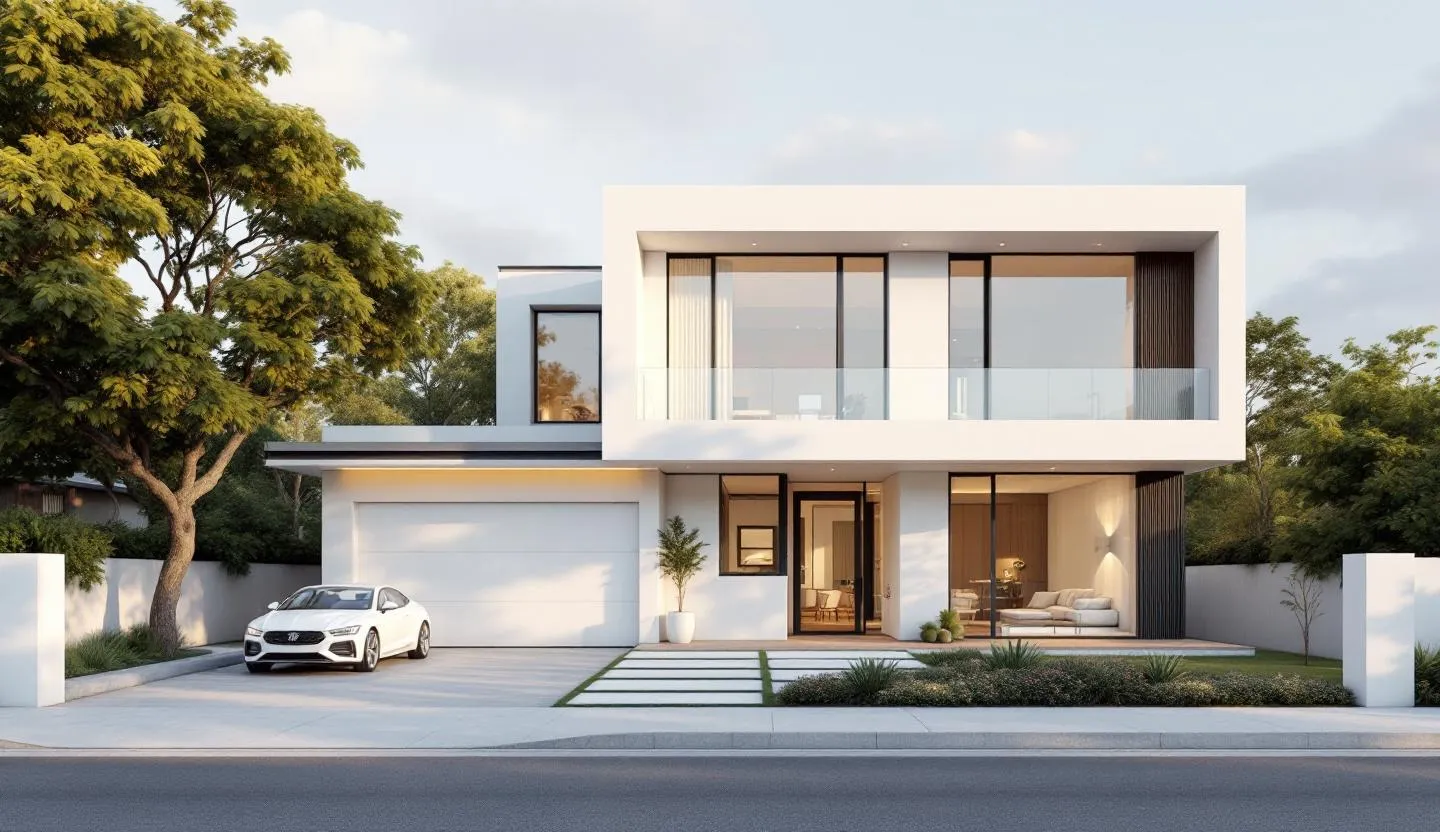
The implication for architectural practice: AI rendering is not a replacement for high-end CGI at later project stages. It is a new capability for the earlier stages where traditional rendering was never viable due to cost and time. The AI rendering feature at Archvisio is designed for these early-stage workflows.
Who Uses Sketch-to-Render AI?
Three groups have adopted this workflow most rapidly:
Residential architects use it to show clients what a house will look like before the planning application is submitted. A single sketch-to-render session at the end of the initial brief meeting can anchor the client's expectations and reduce subsequent design changes.
Commercial developers use it for investor materials and planning pre-applications. Generating photorealistic visuals at feasibility stage — before a project is financially committed — allows developers to test market response and refine briefs before spending on full design services.
Interior designers use it to visualise floor plan to render AI outputs — showing clients how a proposed layout will feel when furnished and lit, without producing a full 3D model of every option.
All three groups share the same underlying need: the ability to produce photorealistic visuals at a stage when traditional rendering is not economically viable.
FAQ
Can AI render from a hand-drawn sketch? Yes. The AI handles hand-drawn sketches provided the lines are reasonably clear and contrasted against the background. Scan or photograph the sketch at the highest resolution available. Photographs taken in good light (avoid shadows across the drawing) work well. Ink or marker drawings outperform pencil sketches due to higher line contrast.
Does the AI understand floor plan scale and room relationships? The AI interprets spatial relationships from the drawing — it understands that rectangles with openings are rooms with doors, that thick lines are walls, and that open boundaries between spaces suggest open-plan layouts. It does not process scale metadata from CAD files, but it infers proportions from the drawing itself. For interior renders from floor plans, the spatial interpretation is generally accurate enough for client presentations.
What file formats does Archvisio accept for sketch-to-render? JPEG, PNG, and PDF are supported. PDF floor plans (the most common export from CAD and BIM software) are automatically converted. For best results, export at the highest available resolution — 300 DPI minimum for A1/A0 drawings. WebP and TIFF are not currently supported.
How many renders can I generate? This depends on your plan. All paid plans include a monthly render credit allocation. Credits are consumed per generation, with high-quality renders using more credits than previews. See the AI rendering feature page for current plan limits and credit pricing.