
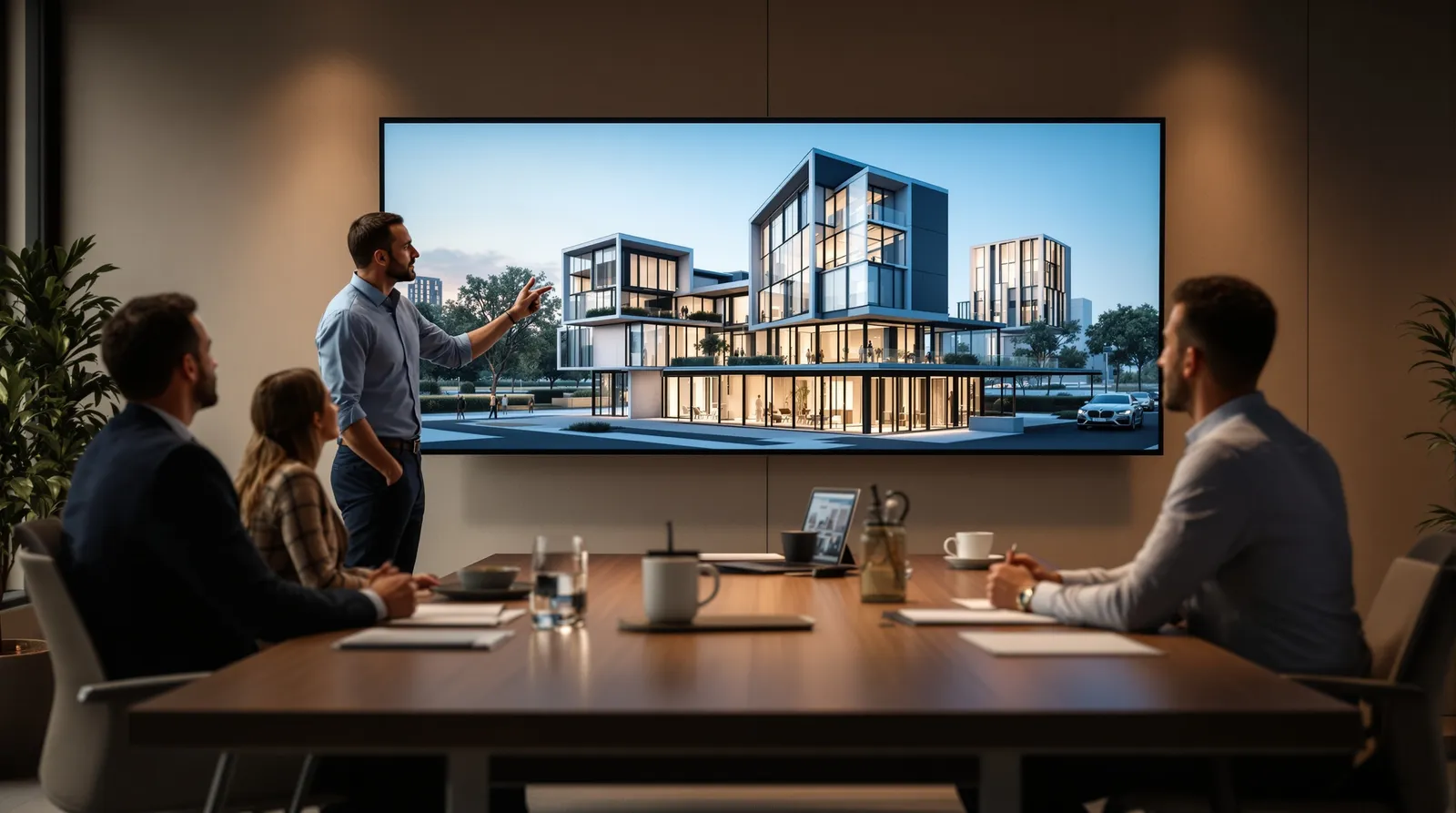
A photorealistic render shown at the right moment can be the most powerful communication tool an architect has. It closes the gap between the client's imagination and the designer's intent, turns abstract space planning into something tangible, and — when used well — accelerates decision-making dramatically.
But renders can also mislead. They can create expectations the built building can't meet. They can present finished-looking images before the design is actually resolved. And they can invite feedback on the wrong things at the wrong time.
Here's how to use AI renders effectively throughout the client relationship.
Stage 1: Concept Presentation
At concept stage, the render's job is to communicate direction, not detail. Clients are choosing between two or three design approaches. The render should make the spatial feeling and overall massing legible — not the specific brickwork coursing or window reveal depth.
For concept presentations, use a loose, sketch-like render style. Deliberately avoid photorealistic material accuracy. This signals to the client that you're in exploratory mode and prevents premature fixation on details that haven't been decided yet.
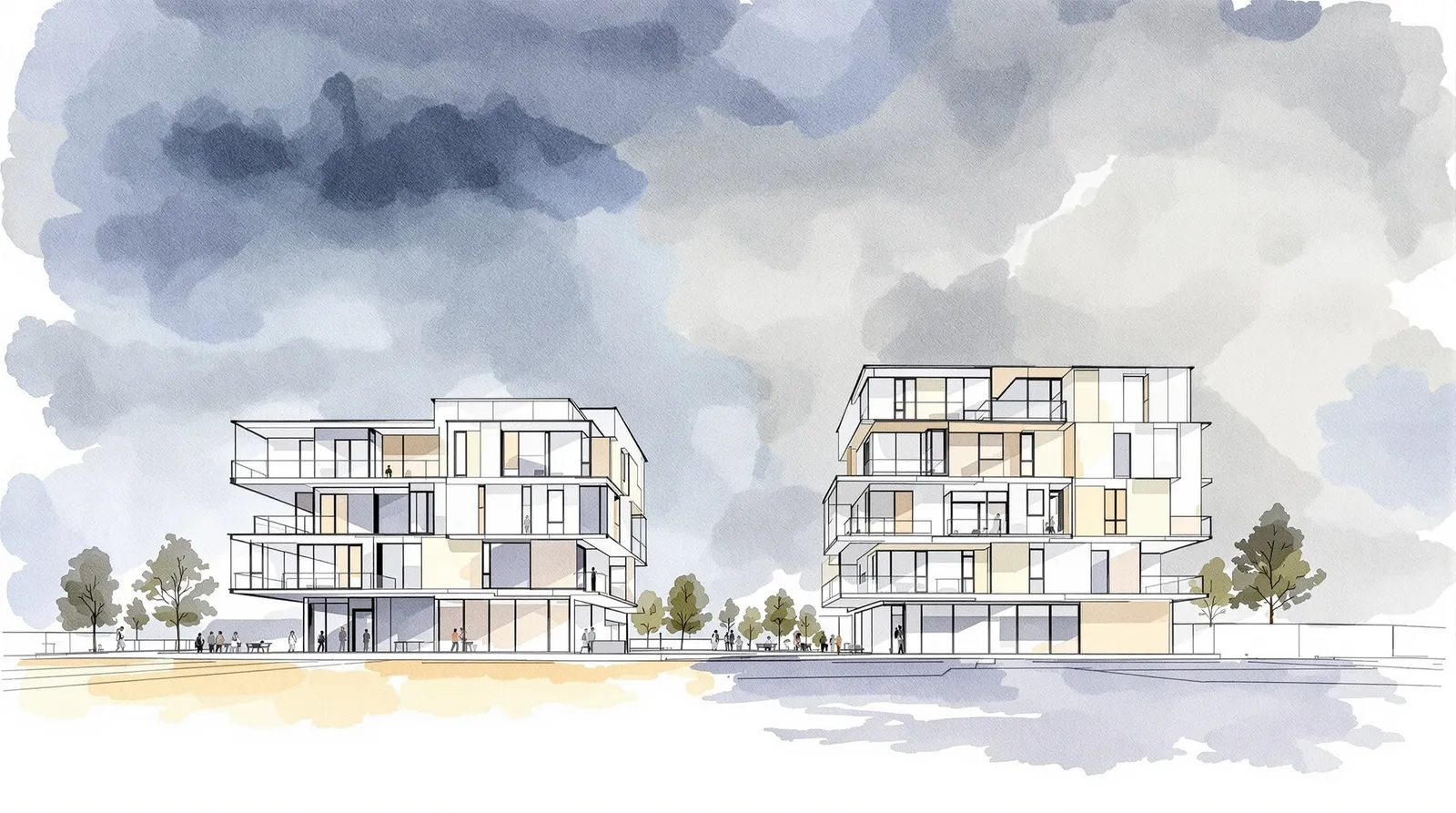
Presentation tip: show multiple concepts side by side at the same scale. Clients make better decisions when they can compare.
Stage 2: Developed Design
At developed design stage, the render should show the scheme as it will be built: specific materials, accurate proportions, realistic site context. This is where Multi-Reference Rendering earns its keep — the ability to show the actual brick, the actual window system, the actual facade panel in a photorealistic context.
This stage is also where AI renders significantly speed up the approval process. When a client can see exactly what they're approving — not interpret a drawing — feedback is more precise and sign-offs happen faster.
Common pitfall: resist the temptation to over-perfect renders at developed design stage. If the render looks completely finished when the design isn't, clients will interpret it as finished and resist further changes.
Stage 3: Planning and Approval
For planning applications, renders need to serve a different audience: planning officers, local residents, elected members. These are people who aren't trained to read architectural drawings and who are often sceptical of new development.
Effective planning renders are contextual first: they show the building in its actual setting, from street level, at human scale. The building should look like it belongs, not like a CGI insert. Use site photography as your base and AI to composite the proposed building into it.
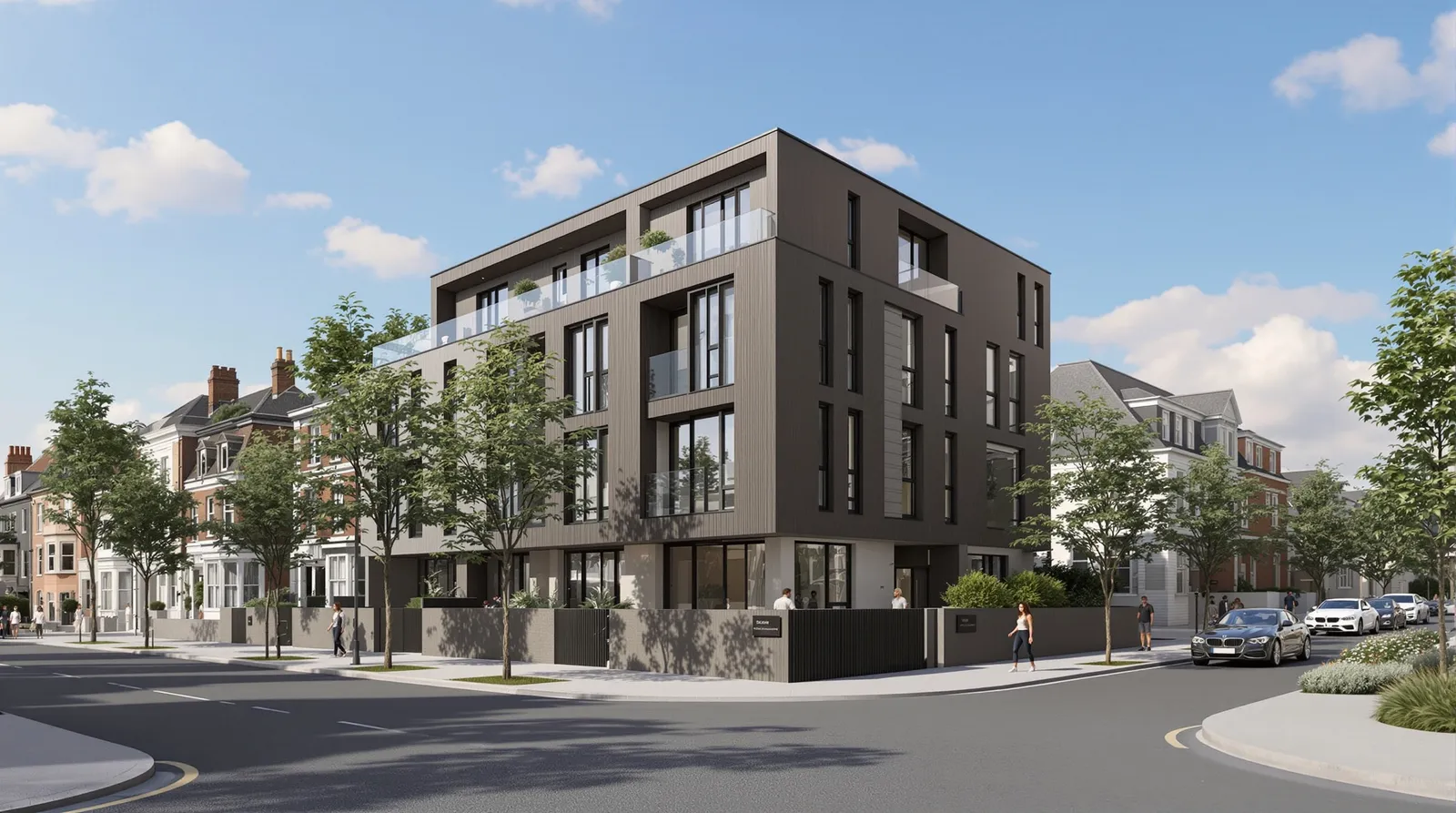
Provide a minimum of three viewpoints: from the street, from the rear of the site, and from the most sensitive neighbouring property.
Stage 4: Marketing and Launch
For off-plan sales and marketing, renders are doing a different job again: selling a lifestyle, not just communicating a design. Lighting, landscaping, and occupant activity become important. A render for a marketing brochure should show the building on a bright summer morning with people outside and planting in full growth.
For this stage, use the highest quality render settings and invest time in post-processing: adjust contrast, warm the light, add subtle atmosphere. Archvisio's Presentation Boards feature lets you assemble multiple views into polished layouts ready for print or PDF export.
Managing Expectations
Always caption AI renders clearly: "Indicative visual — subject to detailed design development" or similar. This is not just a legal protection — it's honest communication that keeps the client in the right mindset.
In verbal presentations, frame renders actively: "This is the atmosphere we're aiming for" rather than "This is what it will look like." This invites engagement rather than approval-seeking.
Using Archvisio in Client Meetings
Archvisio lets you generate renders in real time during a client meeting. If a client asks "what would it look like in lighter brick?" — you can answer that question in the room, on the spot, in 30 seconds.
This turns renders from presentation artifacts into design conversation tools. It changes the dynamic from "we'll come back with updated visuals" to "let's work through this together right now."
For interior-focused projects, see our guide on Interior Rendering with AI — the same presentation principles apply but with different considerations around light and material.