
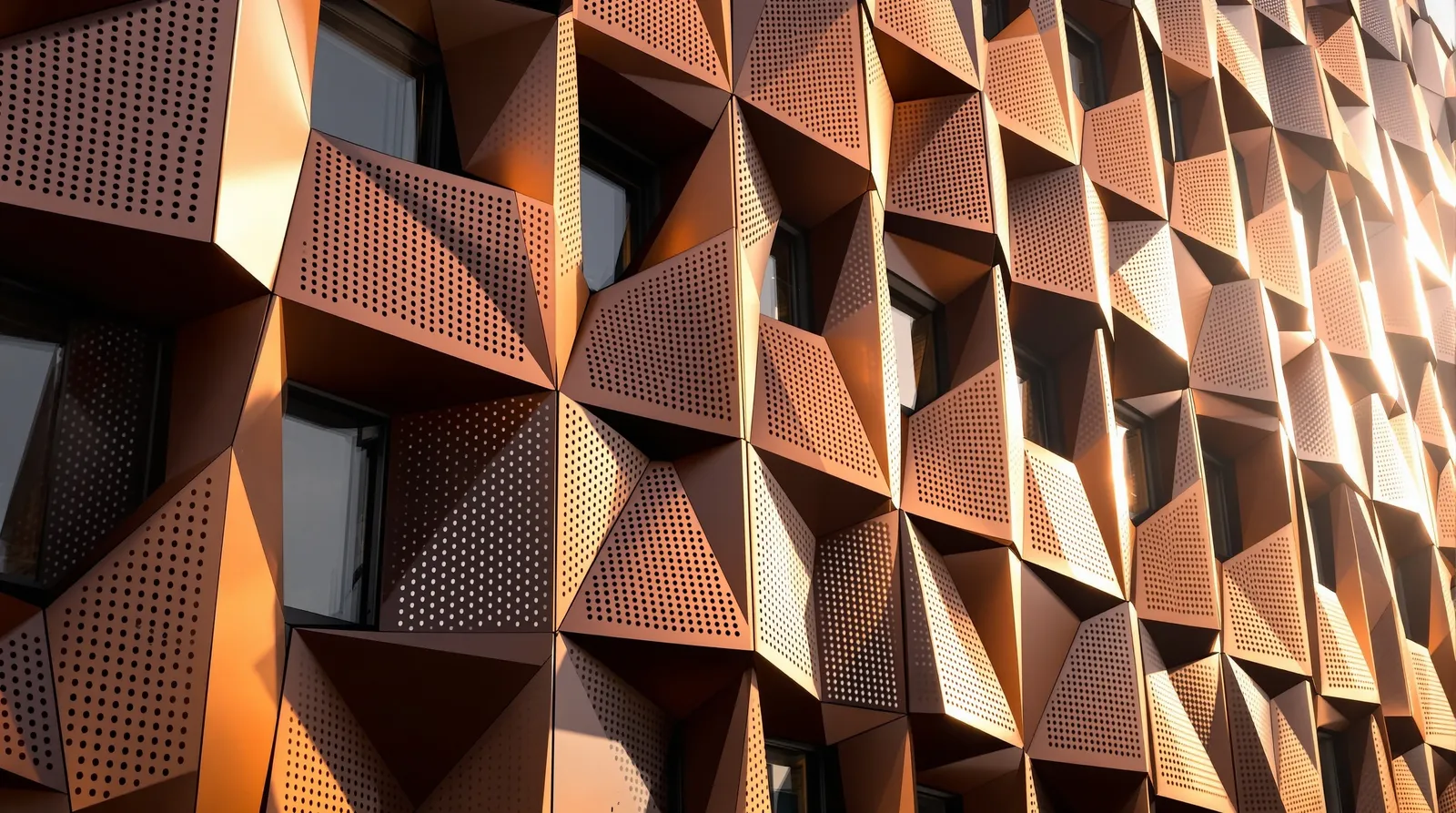
The facade is where a building makes its statement. It's also where design decisions have the longest lead times, the highest material costs, and the greatest impact on planning approvals. Yet in most architectural workflows, facade exploration happens late — after the scheme is fixed — because producing visualisations used to be slow and expensive.
AI changes this equation entirely.
The Facade Editor Workflow
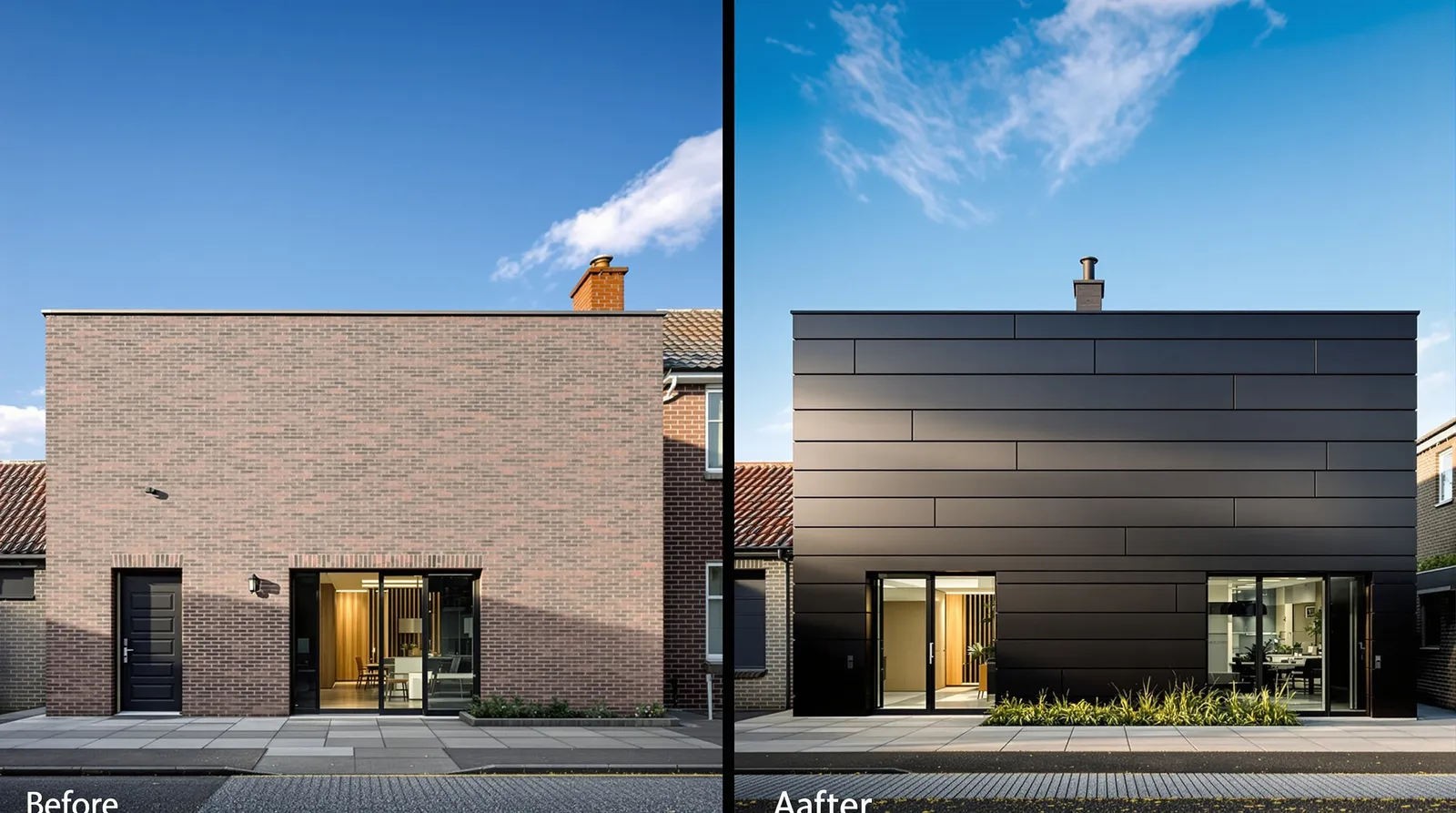
Archvisio's Facade Editor lets you upload an image of your building — a rendered elevation, a photograph of the existing structure, or even a site composite — and then apply different cladding systems, colours, and finishes directly to the facade.
The process takes less than a minute per variation:
- Upload your base facade image
- Describe the material change in plain language — "dark grey zinc cladding with horizontal standing seams", "weathered Corten panels with punched windows", "white render with timber screen"
- Generate
The AI preserves the geometry, window positions, and proportions of your design while applying the new material system faithfully.
Exploring at Scale
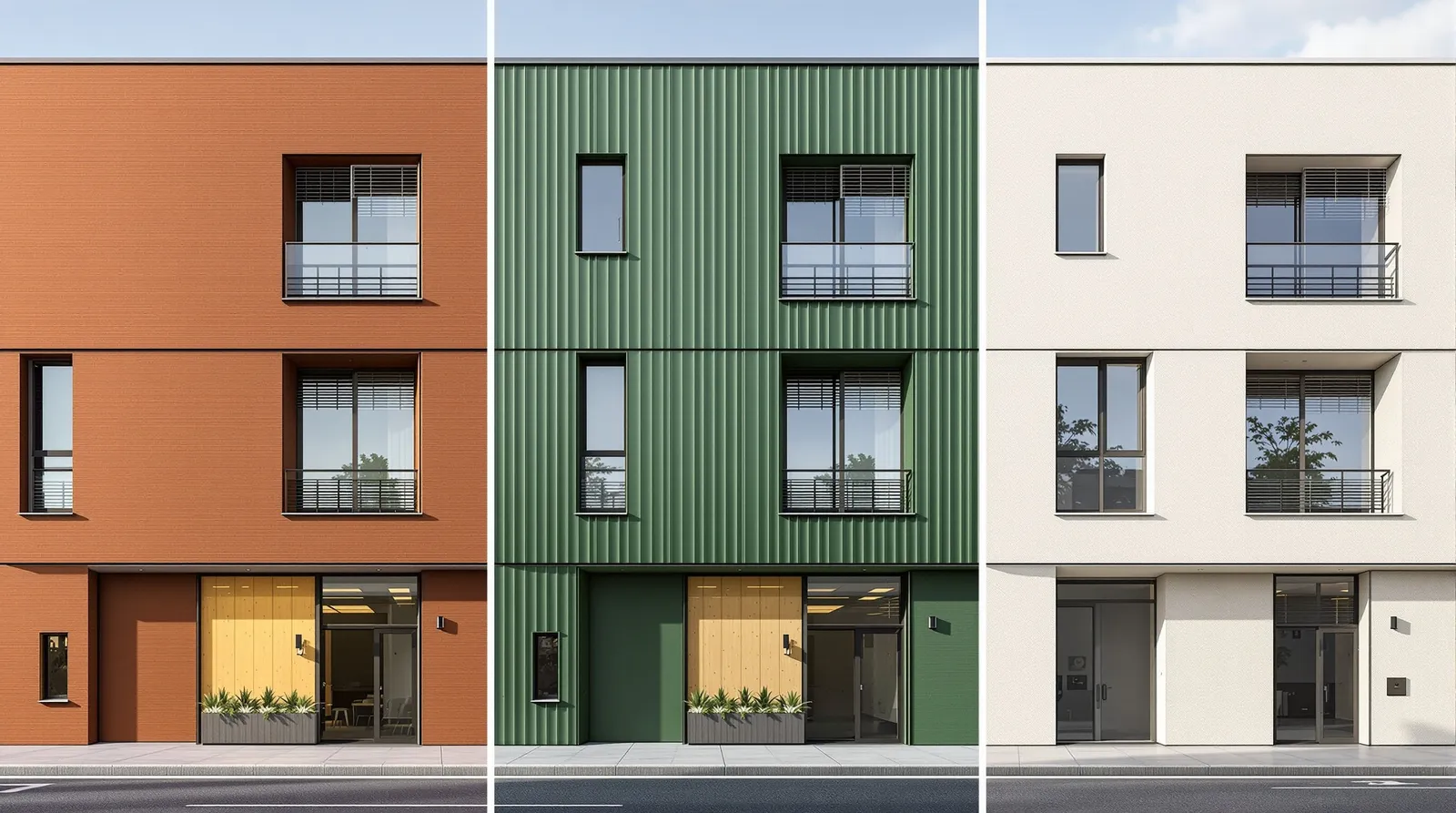
Because each variation takes seconds, you can now do something that was previously impractical: explore the full design space before committing.
Generate twelve facade options in a morning. Run them past the team. Share the best three with the client at the afternoon call. Get a decision in the same week — not the same month.
This is particularly useful at planning stage, where the appearance of the building relative to its neighbours is scrutinised closely. Generate a street-level render for each facade variant, overlaid on a site photo, and the planning officer can see exactly what you're proposing.
Material Accuracy
The quality of the output depends on the specificity of your description. Generic prompts produce generic results. But when you describe a material precisely — manufacturer, profile, finish, joint pattern — the AI produces a render close enough to use in client presentations.
For critical accuracy, combine the text description with a material reference image. Upload a photo of the actual product sample, and the AI will match colour, texture, and reflectivity to the reference. Read our guide to Multi-Reference Rendering for a full breakdown of how to layer inputs for maximum accuracy.
Colour Studies
Colour is one of the most contentious aspects of facade design — and one of the hardest to communicate in drawings. A RAL colour code on a spec sheet tells the client nothing about how a colour will read at 50 metres, in morning light, against a brick context.
With AI rendering, you can produce a photorealistic colour study showing the facade in context, at different times of day, with different lighting conditions. Show the client the deep green in the overcast afternoon. Show them the same building at golden hour. The conversation becomes concrete instead of abstract.
Getting Started
Upload a facade photo or rendered elevation to Archvisio, select the Facade Editor mode, and describe the material you want to test. First results in under a minute.
Once you have your facade variations, see how to present them effectively to clients — including how to frame different options at each project stage.