
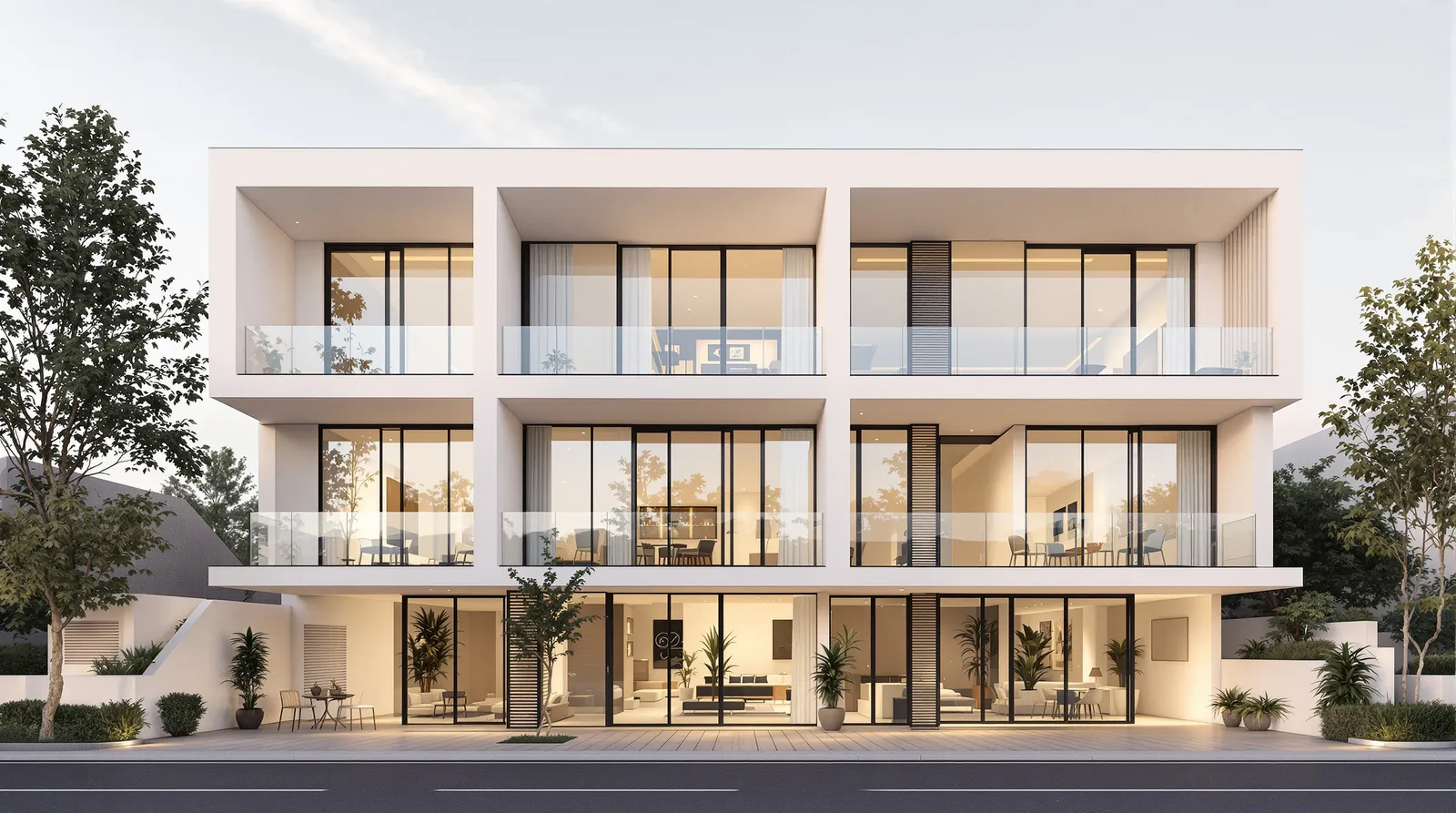
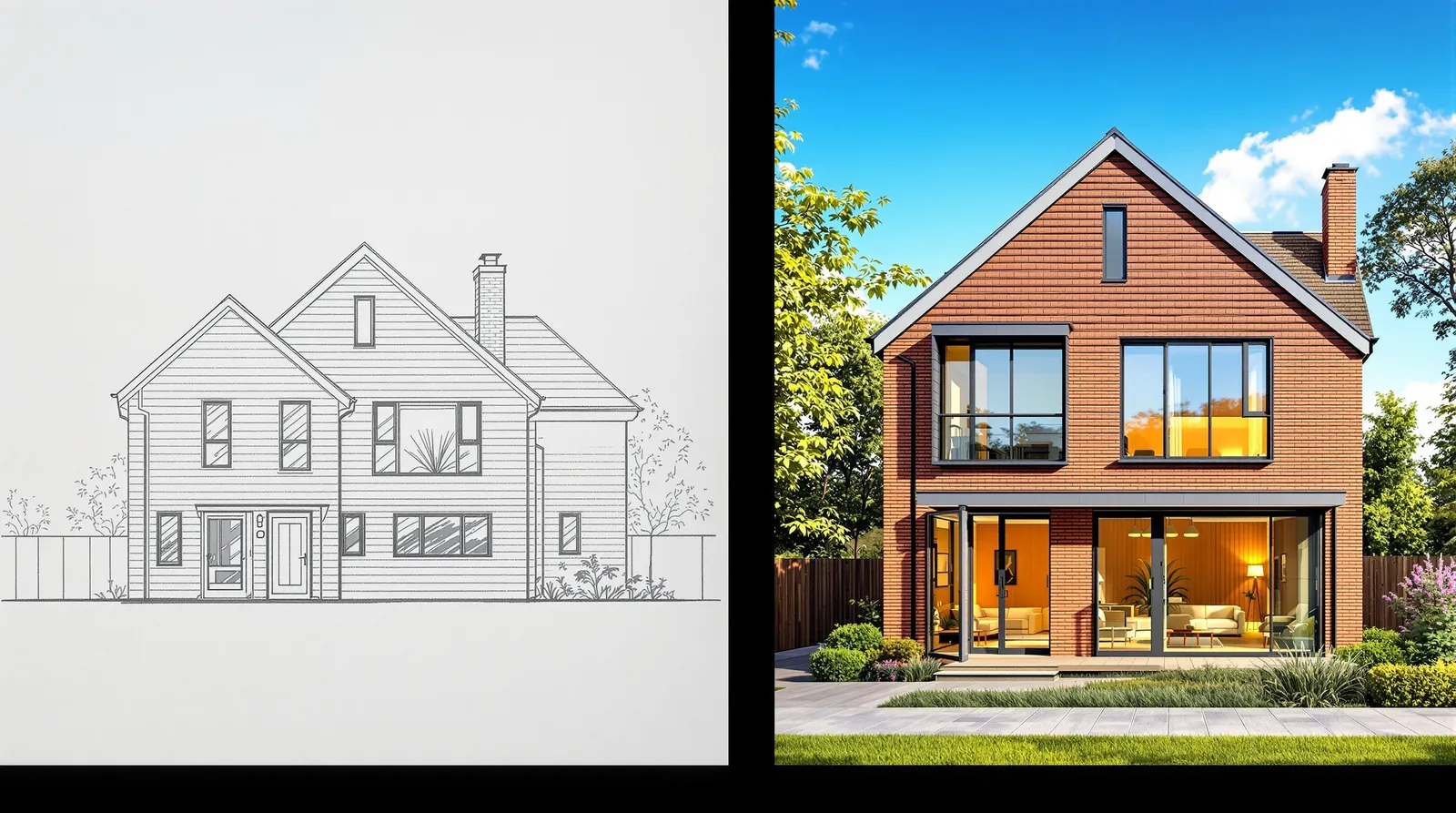
AI elevation rendering converts a 2D facade drawing — CAD export, hand sketch, or scanned plan — into a photorealistic render in under 60 seconds. No 3D model required. Upload the elevation, write a prompt describing materials and lighting, and the AI produces a presentation-ready facade image.
This is the fastest way to visualise a facade at early design stages, before a 3D model exists.
What Is AI Elevation Rendering?
AI elevation rendering is the process of using an AI model to transform a 2D architectural elevation drawing into a photorealistic facade image. The elevation drawing acts as a geometric guide — the AI reads the facade proportions, window positions, and overall form, then applies materials, lighting, and environmental context based on a text prompt.
The output is a photorealistic render accurate enough for client presentations, planning pre-applications, and design iteration — generated in seconds rather than hours.
Archvisio's AI rendering feature handles elevations directly, including CAD exports, hand sketches, and scanned drawings.
How Does AI Elevation Rendering Work?
The workflow follows five steps:
-
Upload the elevation drawing. JPEG, PNG, and PDF are supported. CAD exports at 300 DPI or above produce the sharpest results. Hand sketches scanned in good light also work well. The drawing provides the geometric framework — facade proportions, window positions, storey heights.
-
Write a prompt describing the facade. Specify materials and lighting. "Dark grey zinc cladding, floor-to-ceiling glazing, overcast northern light, residential, contemporary" will produce a very different result from "warm sandstone, timber soffits, Mediterranean afternoon light". Be specific — the prompt is your material specification.
-
Choose quality level. Use the fast preview mode for quick iterations. Switch to full-quality mode for the final image used in presentations or planning submissions.
-
Generate. The AI processes the elevation geometry and prompt together — the drawing constrains the form, the prompt drives the surface. Output takes 10–30 seconds.
-
Iterate. Once the base render is established, use the facade editor to apply targeted material swaps — changing cladding, glazing, or roof finish without regenerating the entire image. This is where AI elevation rendering becomes fast enough to explore multiple design options in a single client meeting.
What Elevation Drawing Types Work Best?
| Input Type | Output Quality | Notes |
|---|---|---|
| CAD export (PDF/PNG, 300 DPI+) | Excellent | Precise geometry, cleanest results |
| Digital elevation drawing | Excellent | Any vector-based tool output works |
| Hand sketch (clear ink lines) | Good | High line contrast improves accuracy |
| Pencil sketch | Fair | Works, but ink scans outperform pencil |
| Scanned paper drawing | Good | Photograph flat in good light, avoid shadows |
| Site photo of existing facade | Excellent | Real-world geometry preserved |
| Blurry or low-res scan | Poor | Clean up or re-scan before uploading |
The AI is tolerant of imperfect inputs — it fills gaps based on architectural conventions. A clean CAD elevation will produce geometrically accurate results, but even a rough sketch communicates enough form for a useful first render.
How Accurate Are AI Elevation Renders?
Accuracy depends on drawing clarity and prompt specificity.
Drawing clarity determines geometric accuracy. A clean CAD export with distinct linework produces a render that closely follows the facade geometry. The AI reliably reads window-to-wall ratios, storey heights, and facade composition. It does not read scale metadata from CAD files, but it infers proportions from the drawing itself — which is sufficient for visualisation purposes.
Prompt specificity determines material and lighting accuracy. A prompt that names the exact cladding system, glazing type, and light source will produce results close to the intended design. Vague prompts produce architecturally plausible renders, but not design-specific ones.
For planning pre-applications and client presentations, AI elevation renders communicate design intent clearly. In practice: most architects find that two or three prompt iterations produce a facade render accurate enough to get a client decision.
AI Elevation Rendering vs Traditional Facade Visualisation
| AI Elevation Rendering | Traditional 3D Rendering | |
|---|---|---|
| Time per render | 10–60 seconds | 4–12 hours (model + render + post) |
| Cost per render | Under £0.50 | £100–£800 (in-house or outsourced) |
| Input required | 2D elevation drawing | Full 3D model + materials + lighting rig |
| Skill required | Prompt writing | 3D modelling, rendering software |
| Iteration speed | Seconds per change | Hours per change |
| Suitable from | Concept stage | After scheme design is finalised |
The practical implication: AI elevation rendering is not a replacement for high-end CGI at tender or planning stage. It is a new capability for the earlier stages — concept, brief, initial client meetings — where traditional rendering was not economically viable.
When Do Architects Use AI Elevation Rendering?
Concept stage client meetings. Generating a facade render at the end of the initial brief discussion — while the client is still in the room — anchors expectations early and reduces subsequent design changes.
Planning pre-application enquiries. Many planning authorities accept indicative visualisations at pre-application stage. AI elevation renders from basic elevations provide sufficient quality at a fraction of the cost.
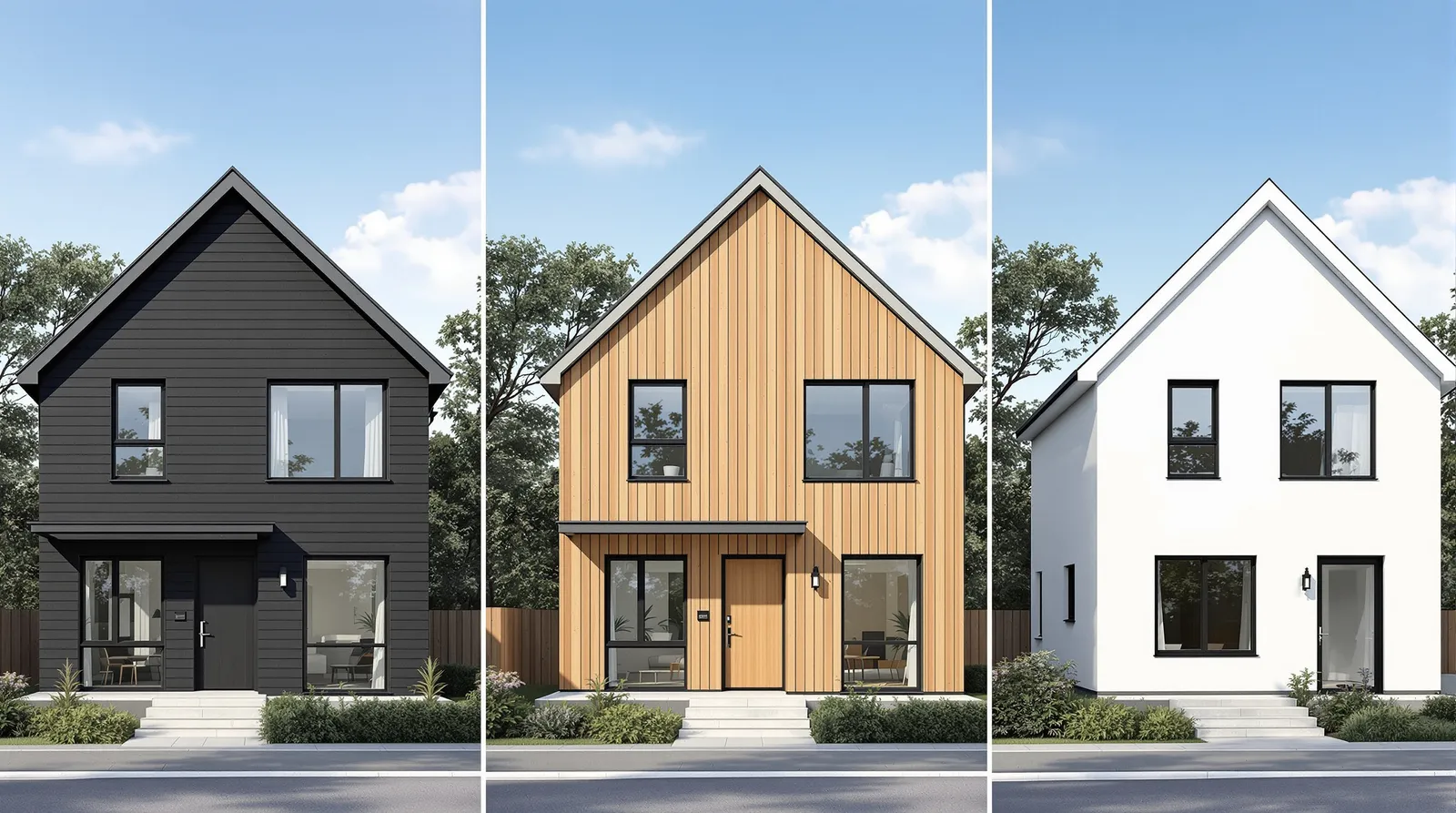
Facade material exploration. Using the facade editor to systematically test cladding options on the same elevation — dark zinc, light timber, white render — gives clients a side-by-side comparison faster than a traditional materials board.
Multi-site residential developments. Generating facade renders for each plot from its elevation drawing compresses weeks of visualisation work into hours.
Tips for Better AI Elevation Renders
- Use your highest-resolution drawing. Export from CAD at 300 DPI minimum — 600 DPI for A0 drawings.
- Describe facade zones separately. If the ground floor differs from upper floors: "brick plinth, metal-panel upper floors, full-height glazing to ground floor retail units".
- Name the light direction. "Morning light from the east" vs "overcast north light" produces dramatically different results on the same facade.
- Generate multiple variations quickly. Use preview mode for 4–6 prompt variations, then full-quality for the chosen direction.
- Use reference images for unusual materials. The style reference feature lets you provide a material image alongside the prompt.
FAQ
Can AI render a facade from a hand-drawn sketch? Yes. Ink or marker sketches work best due to high line contrast. Scan the sketch flat and use the highest resolution available. The AI fills in architectural detail based on the form it reads from the drawing.
Does AI elevation rendering work for heritage or listed buildings? Yes. Upload a photograph or existing elevation drawing, then prompt for the proposed changes — new windows, repaired masonry, extension additions. The facade editor applies changes only to the specified area without altering the existing fabric.
How detailed does the elevation drawing need to be? Sufficient to communicate facade composition — window positions, storey heights, key material changes. A schematic elevation with clear linework is enough. No dimensions or construction detail required.
What file formats does Archvisio accept? JPEG, PNG, and PDF. PDF elevations from CAD are automatically converted. Minimum 300 DPI for A1/A0 drawings. See the AI rendering feature for full format guidance.